1. New ‘Upload Date’ Column
A new Upload Date column has been added to help operators track when transactions are received by the system, providing full visibility into payment timelines.
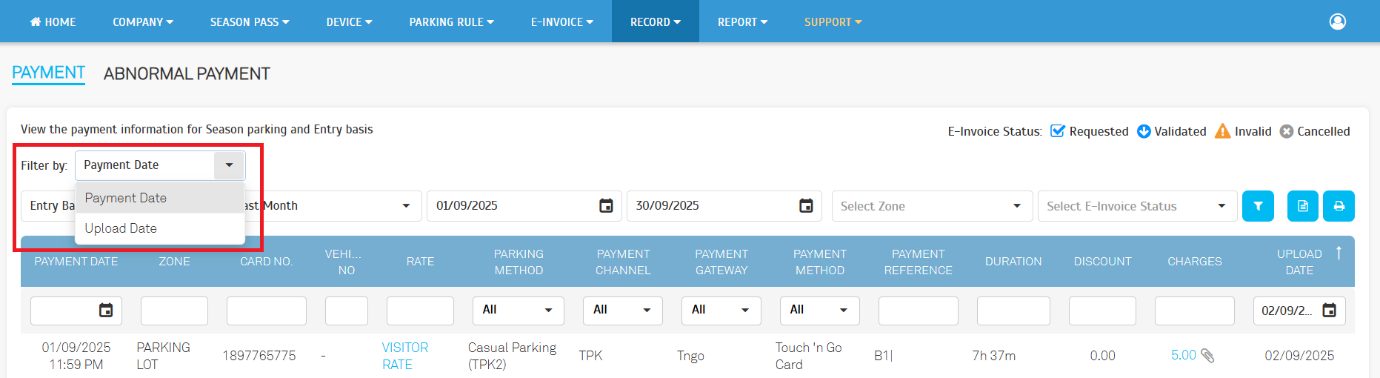
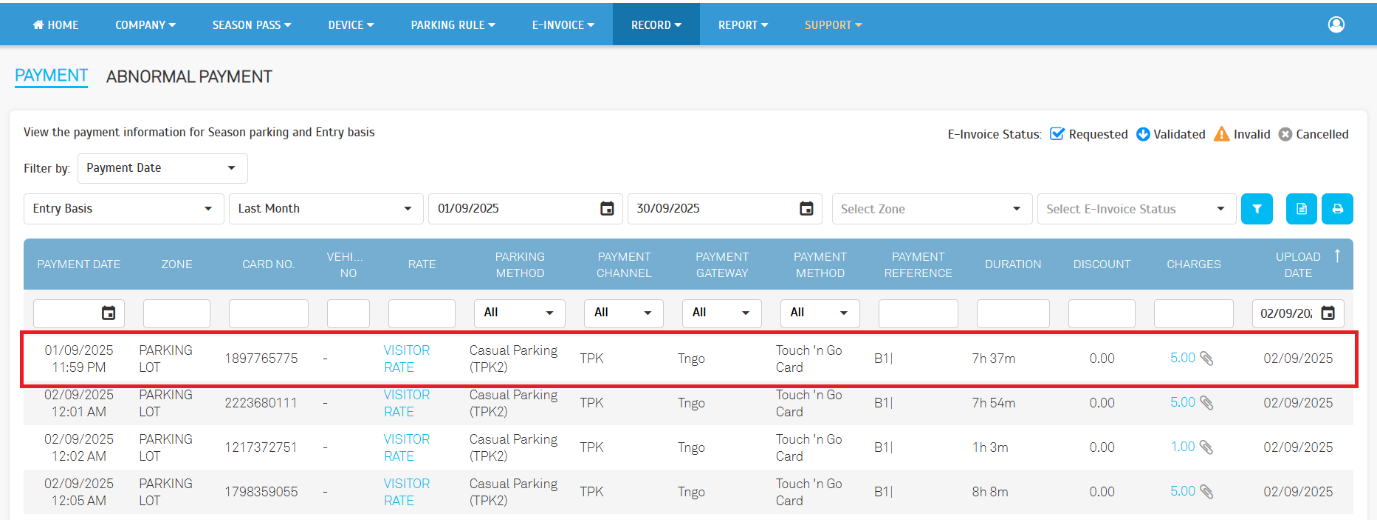
Operator View: Record > Payment
- Filter By: Operators can now filter records by Upload Date for faster data retrieval.
- Listing: Displays the new Upload Date column to indicate when payment records were uploaded.
- Export: Includes Upload Date in exported reports for complete traceabilit
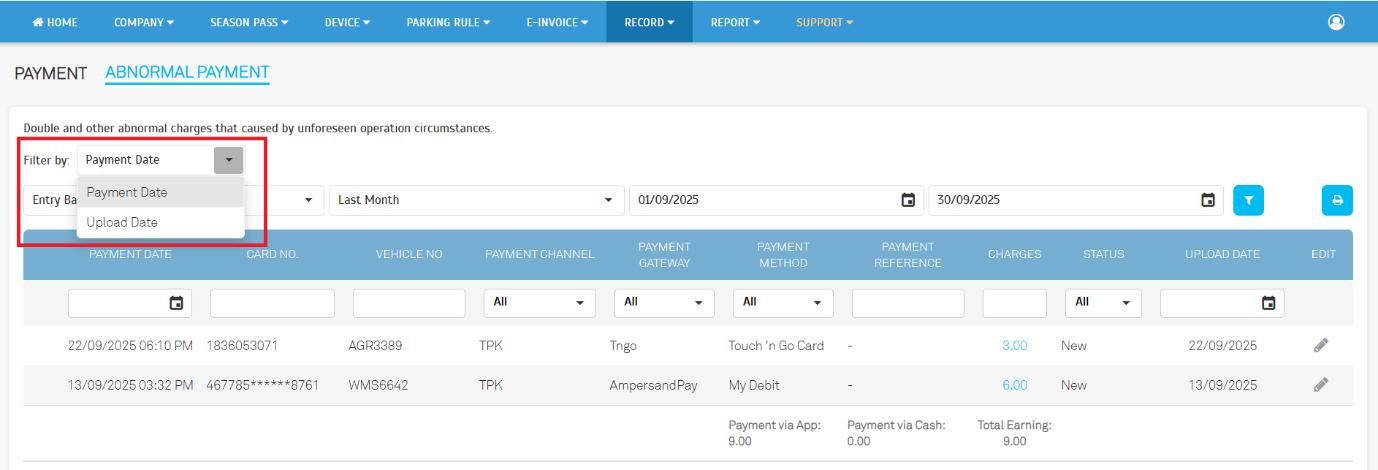
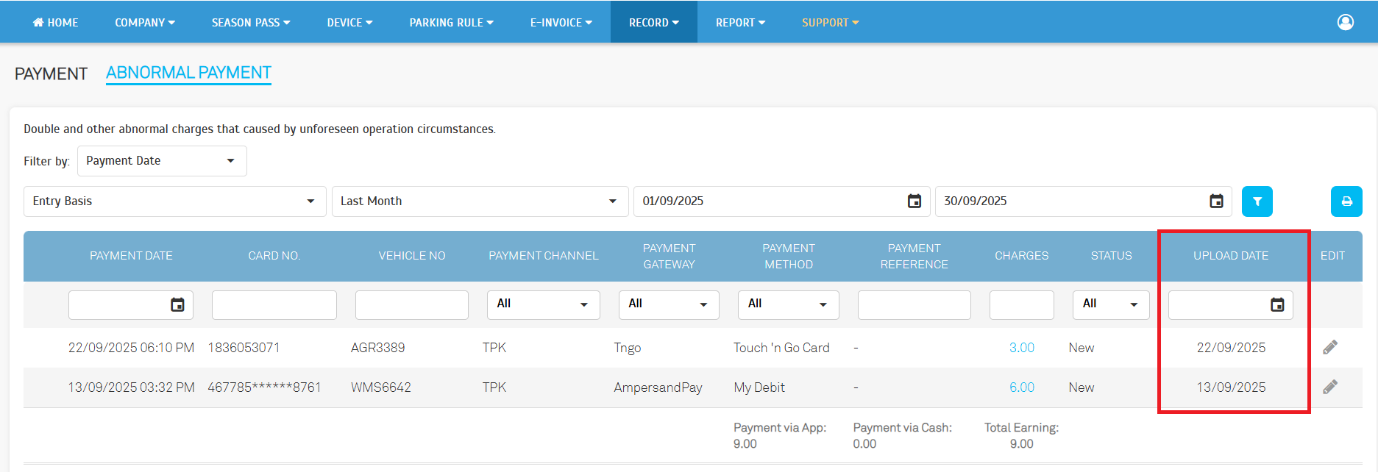
Operator View: Record > Abnormal Payment
- Filter By: Filter abnormal payment records by Upload Date to identify when data was captured.
- Listing: Displays Upload Date for easier identification of delayed or mismatched entries.
- Export: Adds the Upload Date column for audit and reference purposes.
2. Settlement Module Enhancement
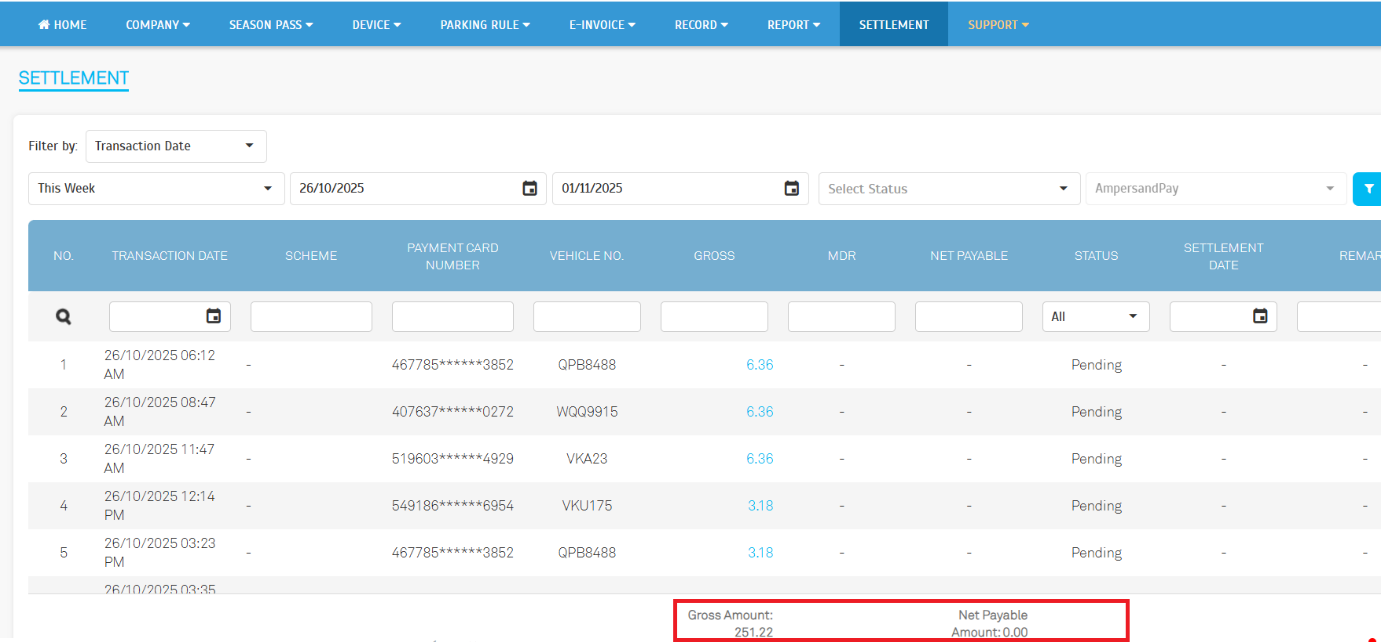
The Settlement module now features a refined layout and improved summary view for easier monitoring and reconciliation.
Operator View: Settlement
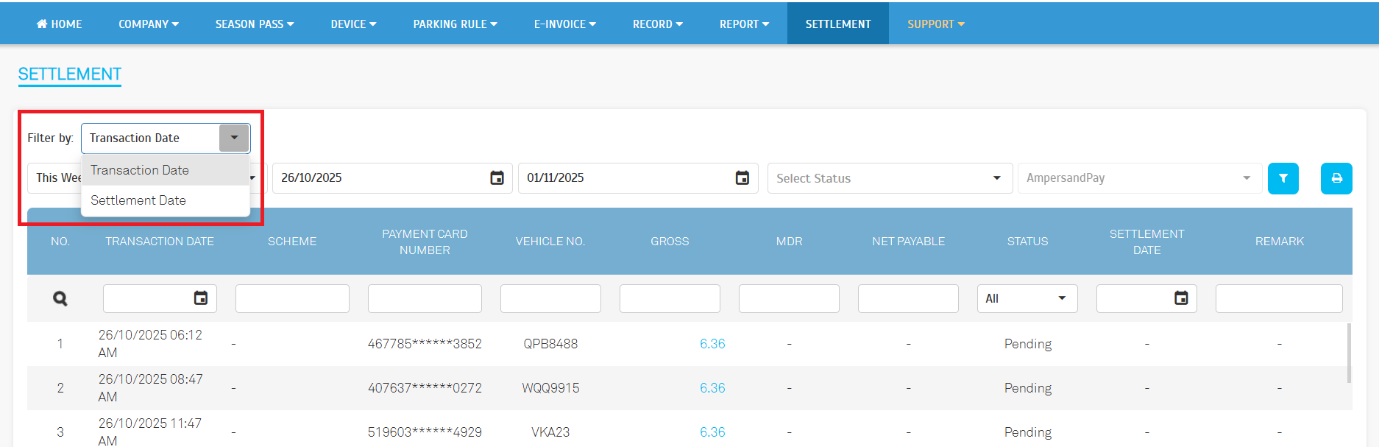
- Filter By: Enhanced filters for selecting settlement records by transaction date or settlement date.
- Summary Updates: A cleaner layout provides a clearer overview of totals and reconciliation status.
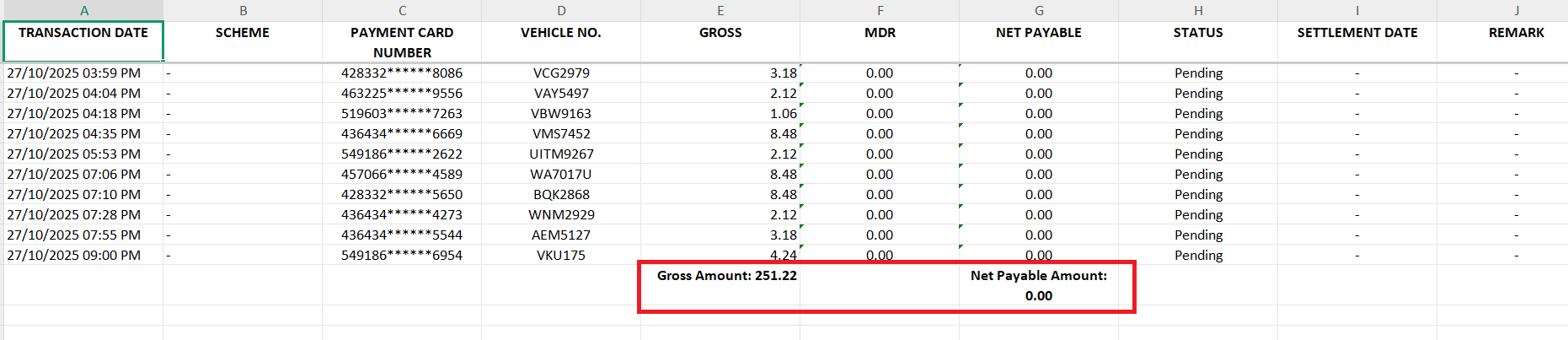
- Export: Exported reports now include improved data alignment and presentation.
3. Taxpayer TIN Validation Feature
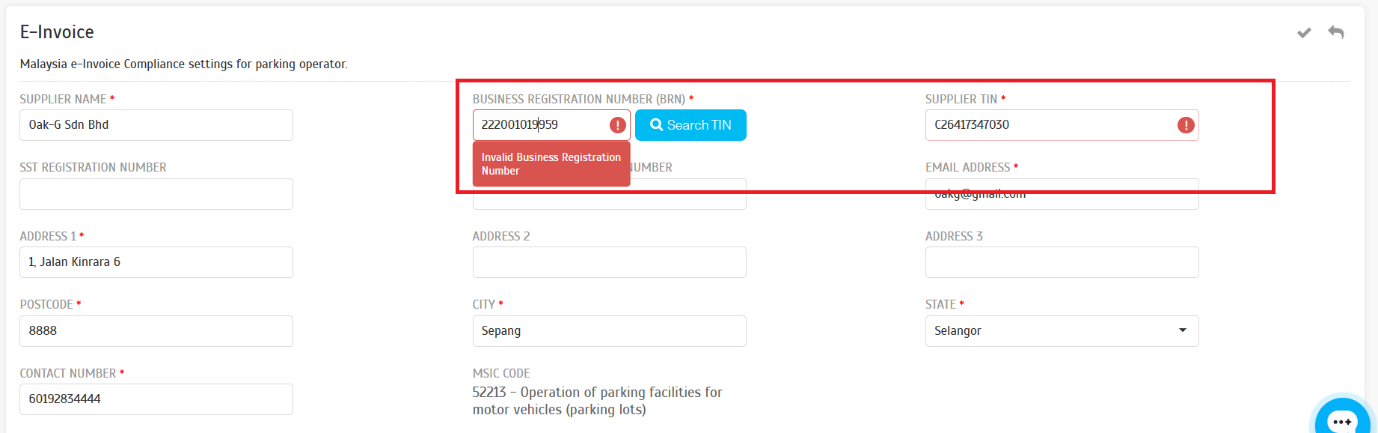
A new `Search TIN` function allows users to validate their Business Registration Number (BRN). Once validated, the system automatically retrieves and configures the Tax Identification Number (TIN) for the company profile, improving data accuracy and compliance.
3.1. Operator View: Company > Company Profile
- Valid BRN Input: The system verifies the BRN and auto-fills the correct TIN.
- Invalid BRN Input: Displays an error message to prevent incorrect configuration.
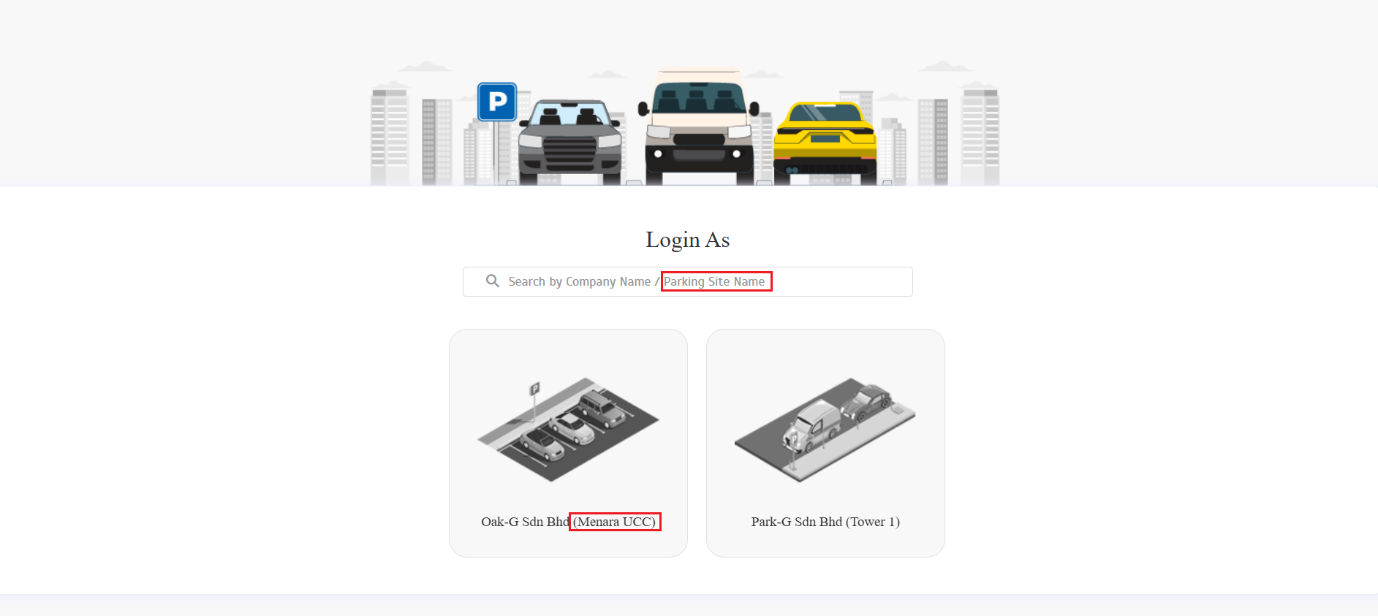
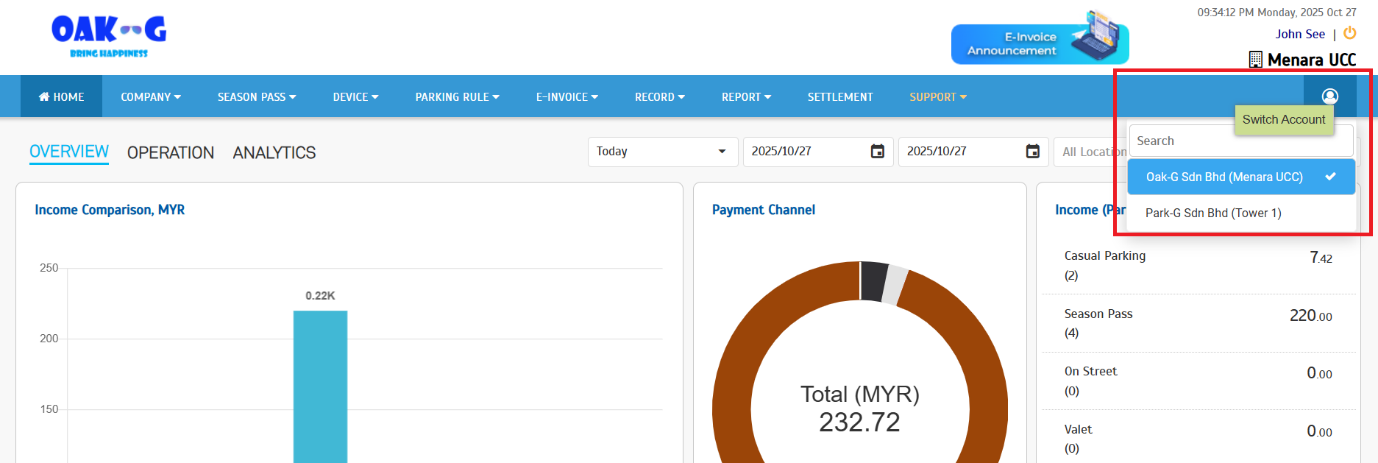
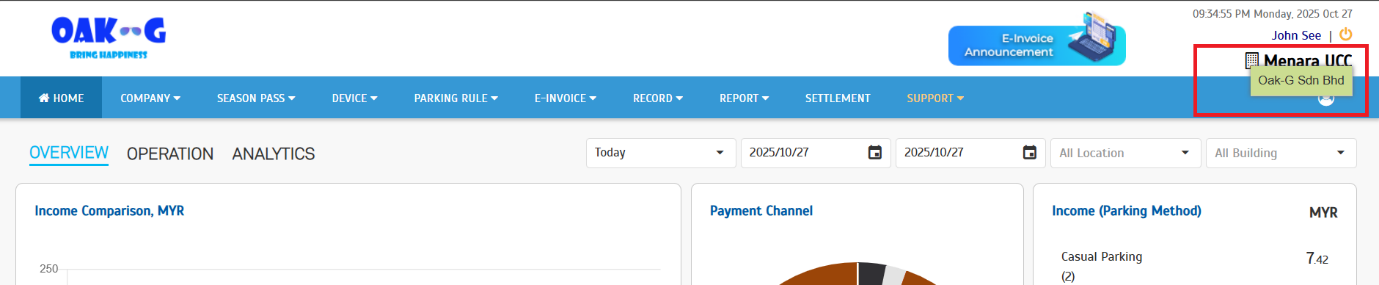
4. Display of Parking Site Name with Company Name
To improve clarity, both Company Name and Parking Site Name are now displayed together in the following format:
Company Name (Parking Site Name)
This helps operators easily confirm their active working location during login, account switching, or profile review.
4.1. Operator View: Login > Choose Parking Site / Company
4.2. Operator View: Switch Account
4.3. Operator View: General > Login Operator Info
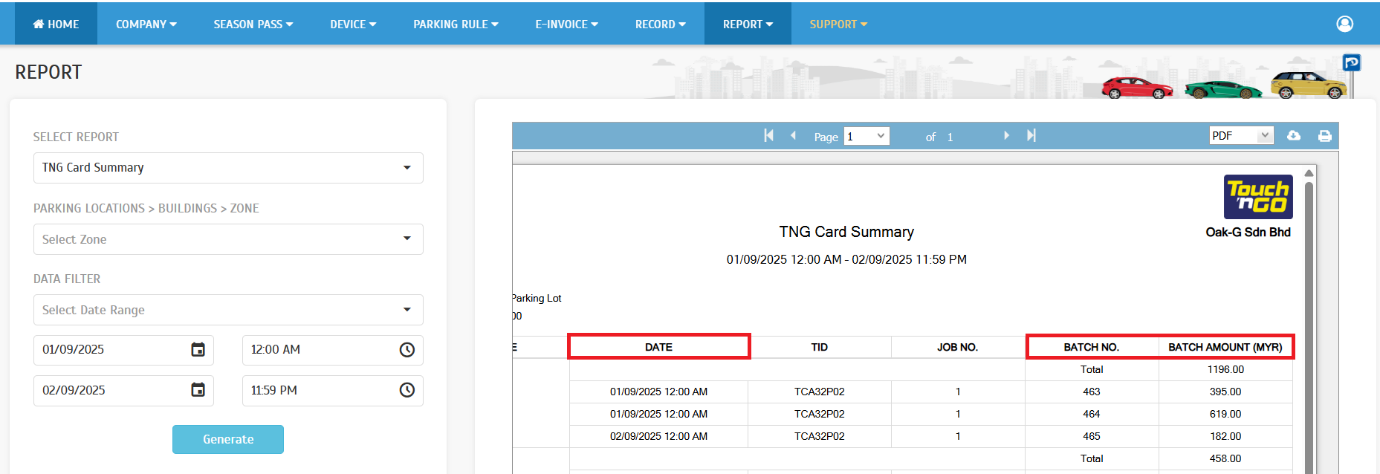
5. TNG Report Summary Enhancement
The TNG Summary Report now groups transactions with the same batch number, even if they span multiple transaction dates. This ensures consistent reporting and simplifies reconciliation.
5.1. Operator View: Report > TNG Summary Report
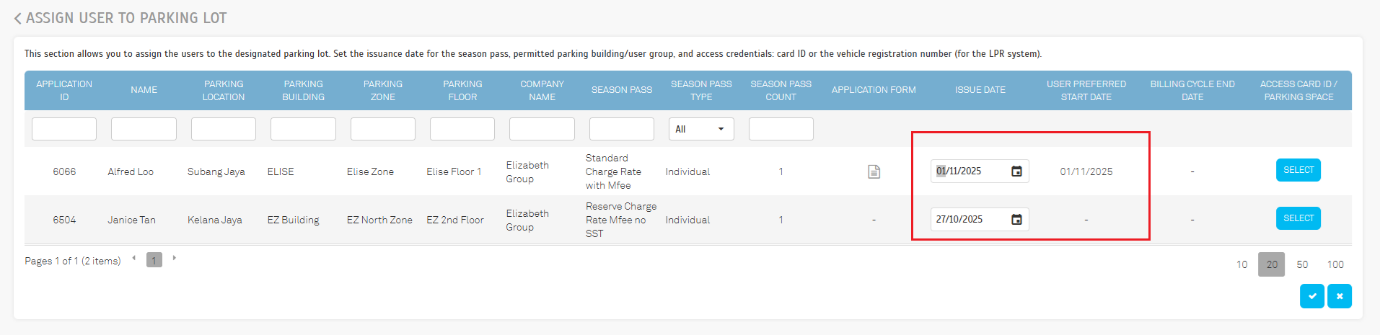
6. Season Pass Approval Enhancement with Preferred Start Date Preset
When approving a new Season Pass, the system now auto-fills the Issue Date based on the applicant’s Preferred Start Date, while allowing operators to adjust it as needed.
6.1. Operator View: Season Pass > Manage Application > New Application
- Click `Approve` to view the application details.
- User Preferred Start Date: Displays the applicant's preferred start date for reference before approval.
- Issue Date (Editable): Automatically pre-fills with the preferred start date, with the option for operators to modify it before confirming approval.
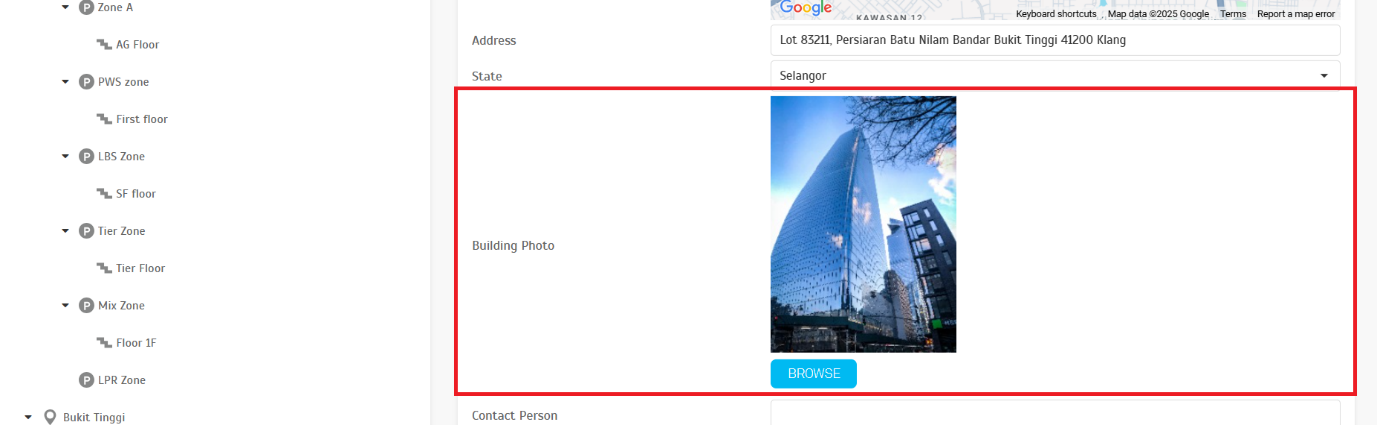
7. Building Photo Integration for Mobile App v2 Display
A new Building Photo field has been added under Building Information to support the upcoming Mobile App v2 interface.
Admins can now upload and manage building images, which will appear in the Season Pass Purchase and My Pass sections of the app, enhancing visual recognition and user experience.
7.1. Parking Rule > Parking Lot > Building Information
8. Minor Enhancements
-
Role Access Control Update
Access permissions have been strengthened — operators now require Edit permission to manage both the Season Pass and Free Access Pass modules.
-
Dashboard Update - Payment Channel Summary
The Credit Card category under Payment Channel Overview now consolidates both Credit Card and Debit Card transactions processed via web payment gateways (Razer, iPay88), ensuring a more accurate financial summary.