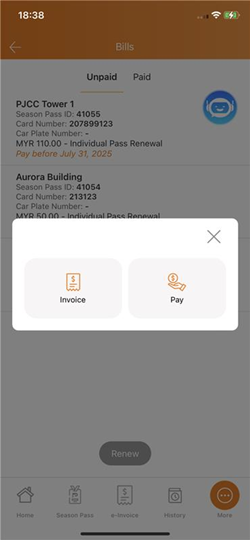
1. Proforma Invoice for Season Pass Renewal
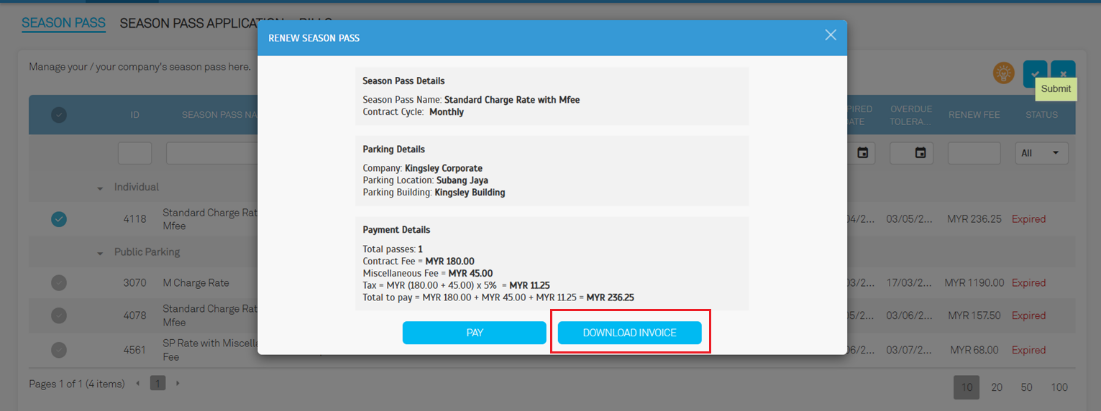
Admins can now generate a Proforma Invoice during Season Pass renewal for:
• Corporate Individual Pass
• Corporate Group Pass
• Public Pass
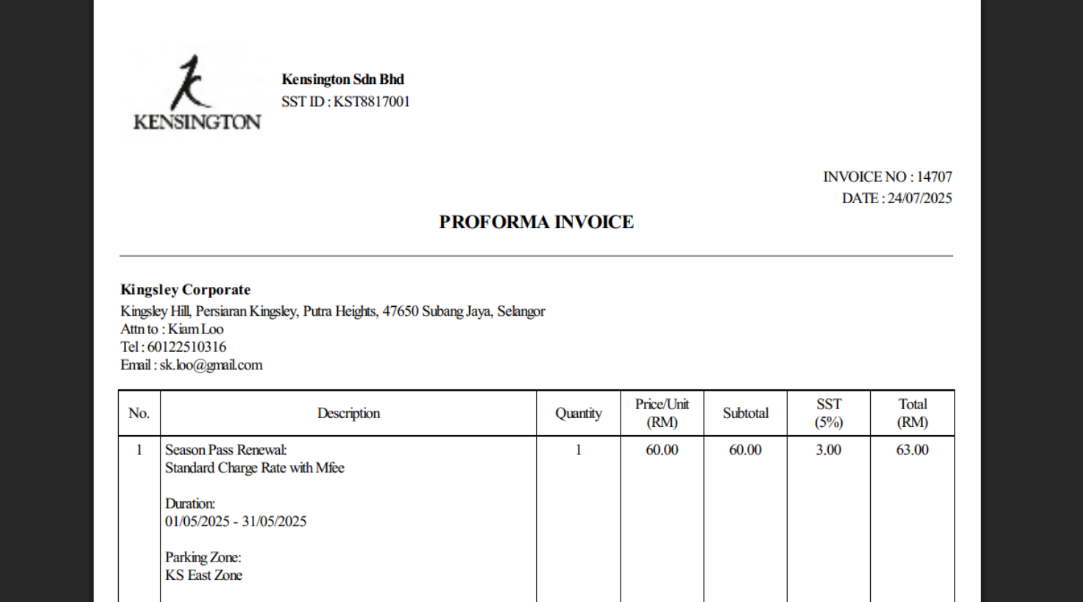
This document serves as a preliminary invoice for internal approval before payment.
User View: Account > Season Pass > Renew / Renew Company Pass
Users can download the Proforma Invoice right after selecting the pass(es) for renewal.
Proforma Invoice Sample
2. TMS Device Integration Enabled in Manage LPR
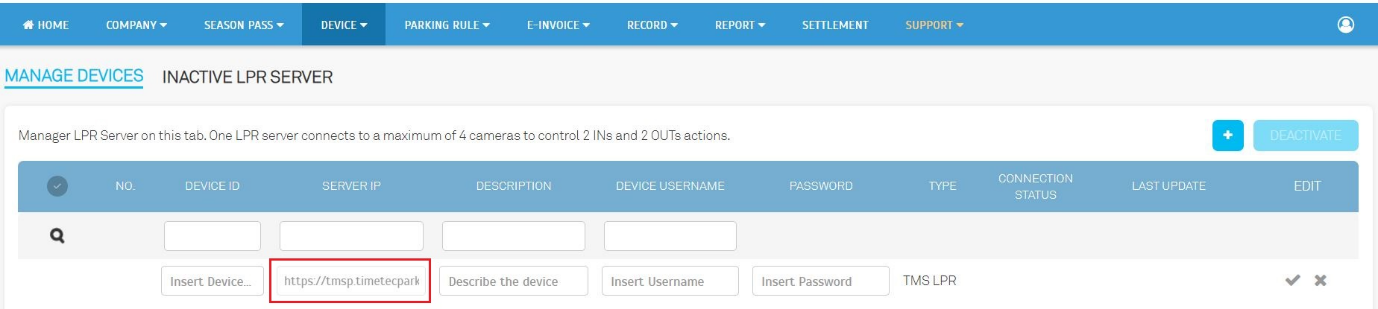
The system now supports integration with TMS Cloud. Operators can add and manage TMS devices directly under the Manage LPR section.
2.1. Operator View: Device > Manage LPR
a. Operators can now add TMS LPR devices via the Manage LPR module.
b. For TMS devices:
i.The Server IP is automatically set by the system and cannot be edited.
ii. Operators are required to provide the Device Username and Password in order to proceed with the device addition.
3. Season Pass with Sub-Zone Configuration
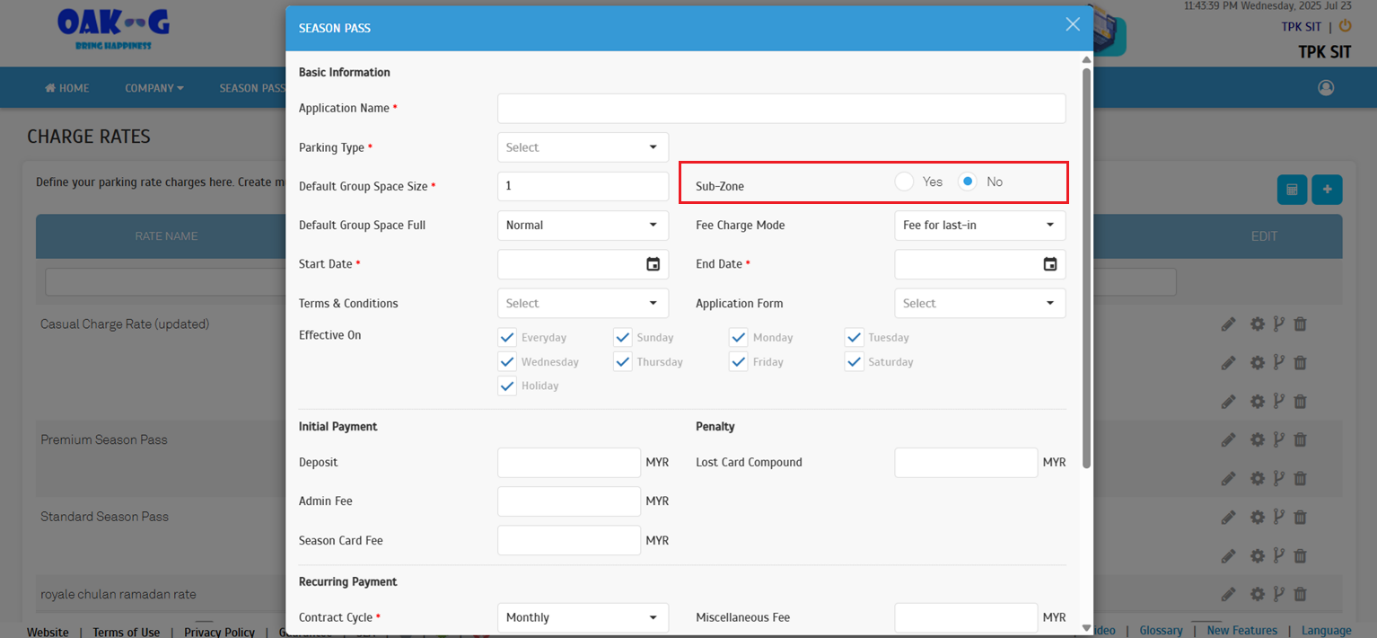
You can now specify whether a Season Pass is valid in a designated sub-zone of a parking area.
Operator View: Parking Rule > Charge Rates > Season Pass
Toggle “Yes” or “No” to apply the charge rate to sub-zones. Default is No.
3.1. Operator View: Parking Rule > Charge Rates > Season Pass
a. Operators can now configure whether a charge rate applies to sub-zones by selecting either "Yes" or "No" in the configuration setting.
b. By default, the option is set to "No", meaning the charge rate does not apply to sub-zones unless explicitly enabled.
4. Introducing Time-Based Restrictions for Promotion Code
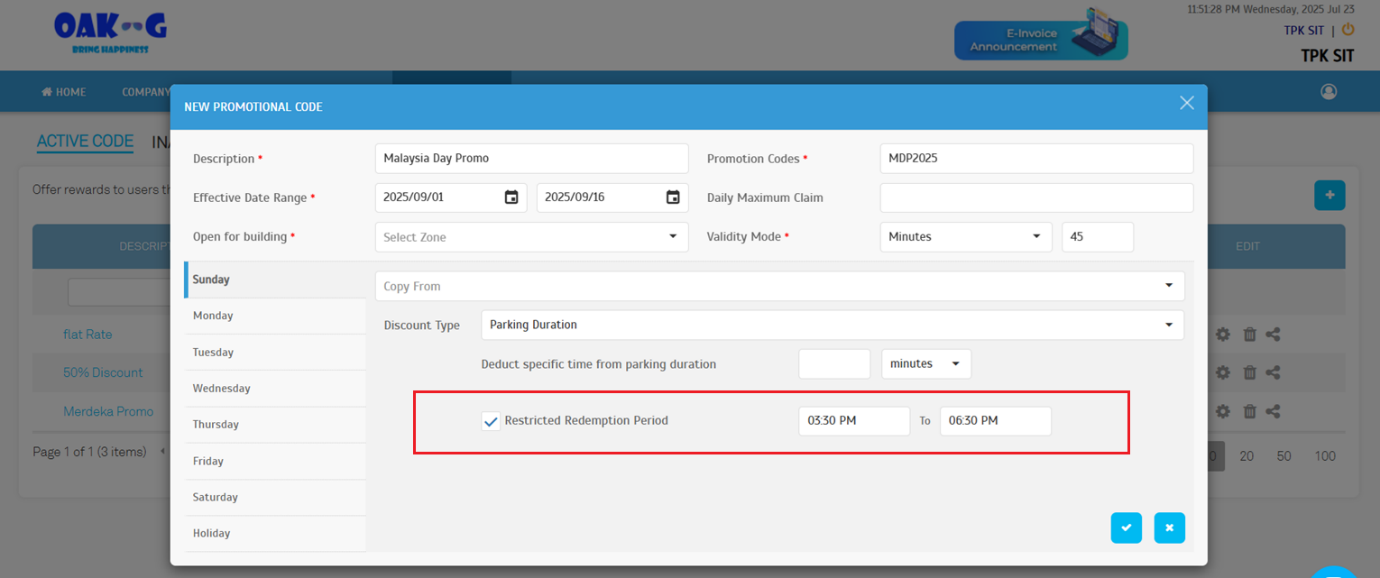
Operators can now define time windows when promo codes cannot be redeemed.
Operator View: Parking Rule > Promotion Code
A new option "Restricted Redemption Period" allows configuration of time-based blocking.
User View: Parking Redemption Portal
• Promo code redemption is blocked if current time falls within the restricted window
• Real-time validation ensures restriction enforcement even if the page was preloaded
4.1. Operator View: Parking Rule > Promotion Code
a. A new option, "Restricted Redemption Period", has been added.
b. Operators can define start and end times for promo code applicability, ensuring the discount is only redeemable outside the defined restricted time window.
4.2. User View: Parking Redemption Portal
a. Time Range Restriction Check on Page Load
If the current time falls within the restricted redemption period, the system will block the promo code from being redeemed and notify the user accordingly.
b. Validation During Promo Code Redemption
Additional validation has been added to enforce time range restriction settings during the actual redemption process, ensuring consistency even if the page was preloaded earlier.
5. User Reminder and Acknowledgment Feature on Redemption Page
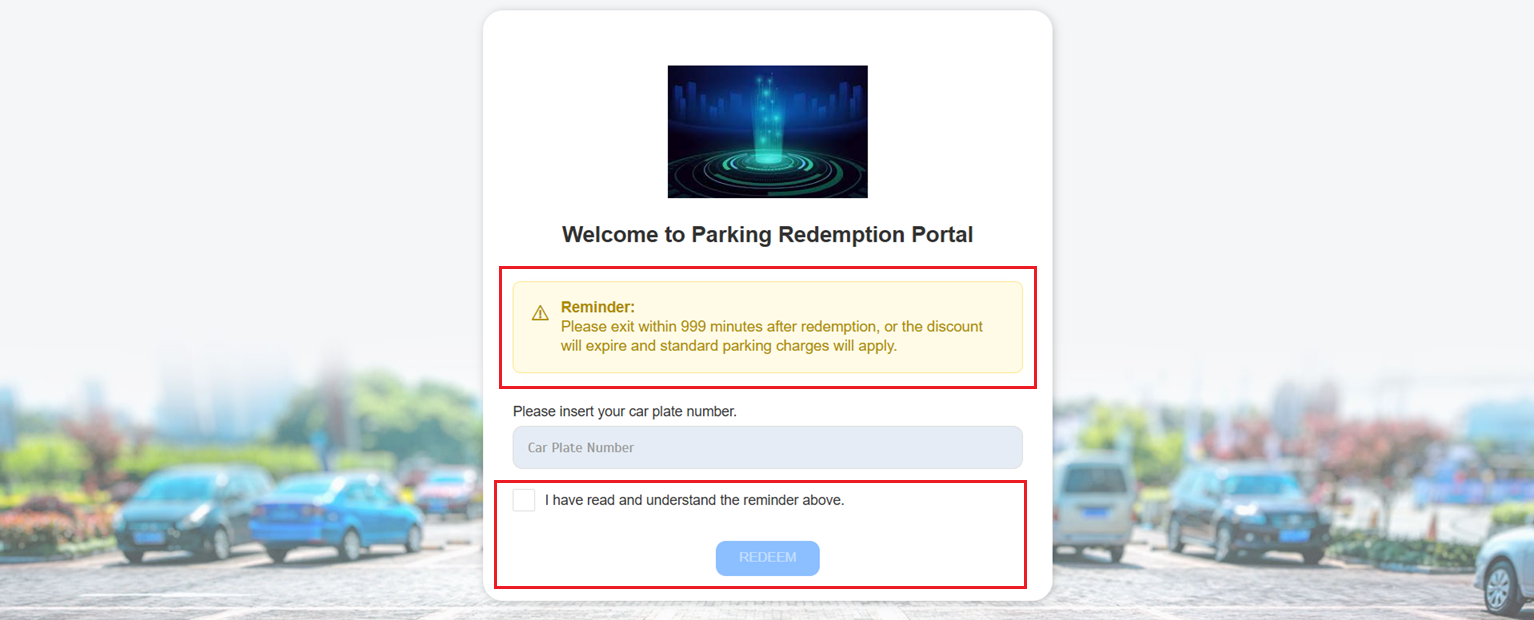
To reduce misuse and improve user clarity, the Redemption Page now shows:
• A custom reminder message showing code validity,
e.g. “Please exit before 12:00 AM after redemption, or standard charges will apply.”
• A mandatory acknowledgment checkbox before redemption can proceed
5.1. User View: Parking Redemption Portal
a. A reminder message is now displayed before a promo code is applied, clearly informing users of the validity period of the redeemed code.
i. For example: "Please exit before 12:00 AM after redemption, or the discount will expire and standard parking charges will apply".
ii. This message is dynamically updated based on the validity mode configured for each promo code.
b. A checkbox has been added to require users to acknowledge the reminder message before proceeding with the redemption.
6. Introducing Fare Rate Mode in Entry Basis
A new Fare Rate Mode provides three flexible ways to charge based on timing.
Operator View: Parking Rule > Charge Rates > Entry Basis > Advanced Settings
Available modes:
1. Exit within a duration: charge fare rate, else normal rate
2. Entry & exit within a duration: charge fare rate, else normal
3. Entry within duration: charge fare rate + standard from end time onward
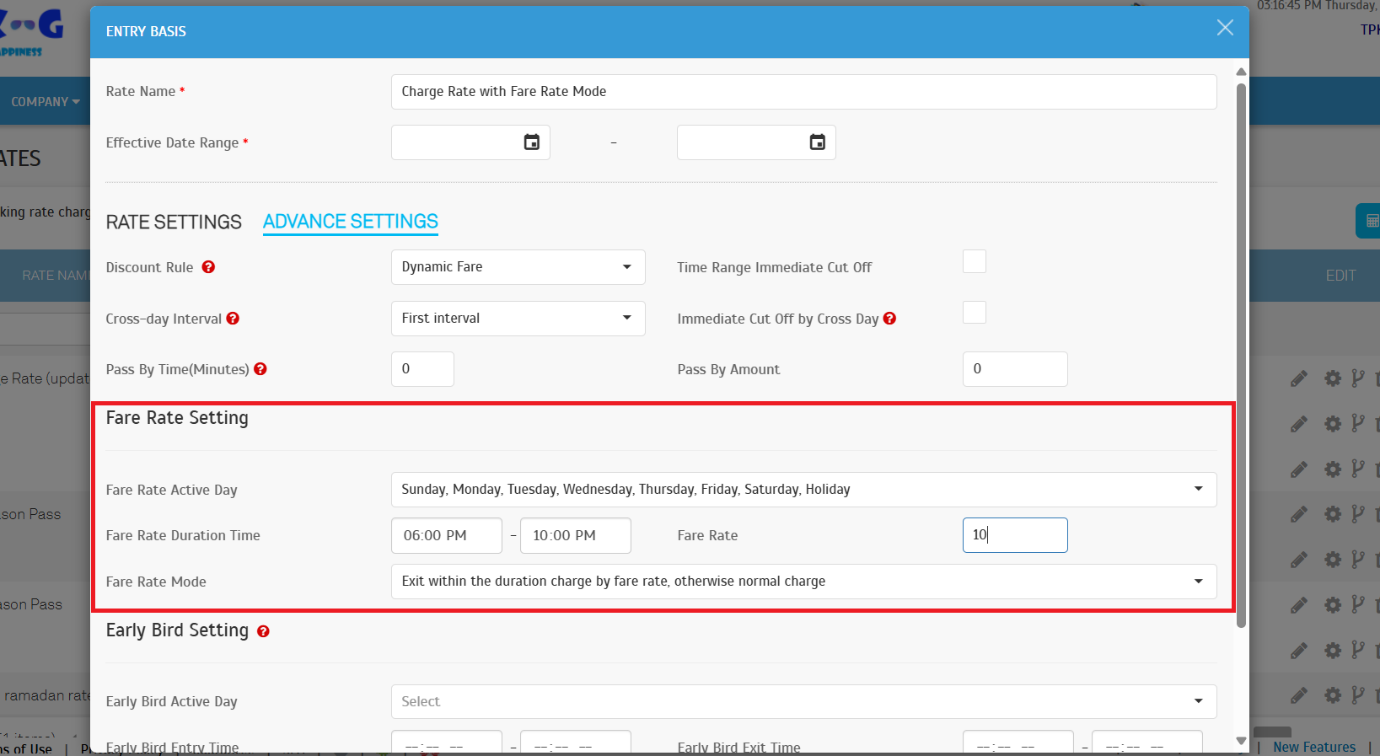
6.1. Operator View: Parking Rule > Charge Rates > Entry Basis
a. A new section titled "Fare Rate Mode" has been added under Advanced Settings. This section allows operators to configure specialized fare structures based on entry or exit timing conditions, offering greater flexibility in how parking charges are calculated.
b. There are 3 options in Fare Rate Mode:
i. Exit within the duration charge by fare rate, otherwise normal charge.
ii. Entry and exit within the duration charge by fare rate, otherwise normal charge.
iii. Entry within the duration charge by fare rate + charge from end time of the duration.
c. Sample for 'Exit within the duration charge by fare rate, otherwise normal charge'.
i. The user is entitled to a fare rate of RM 10 if they exit between 6:00 PM and 10:00 PM.
7. Introducing Early Bird In/Out Rules Configuration in Entry Basis
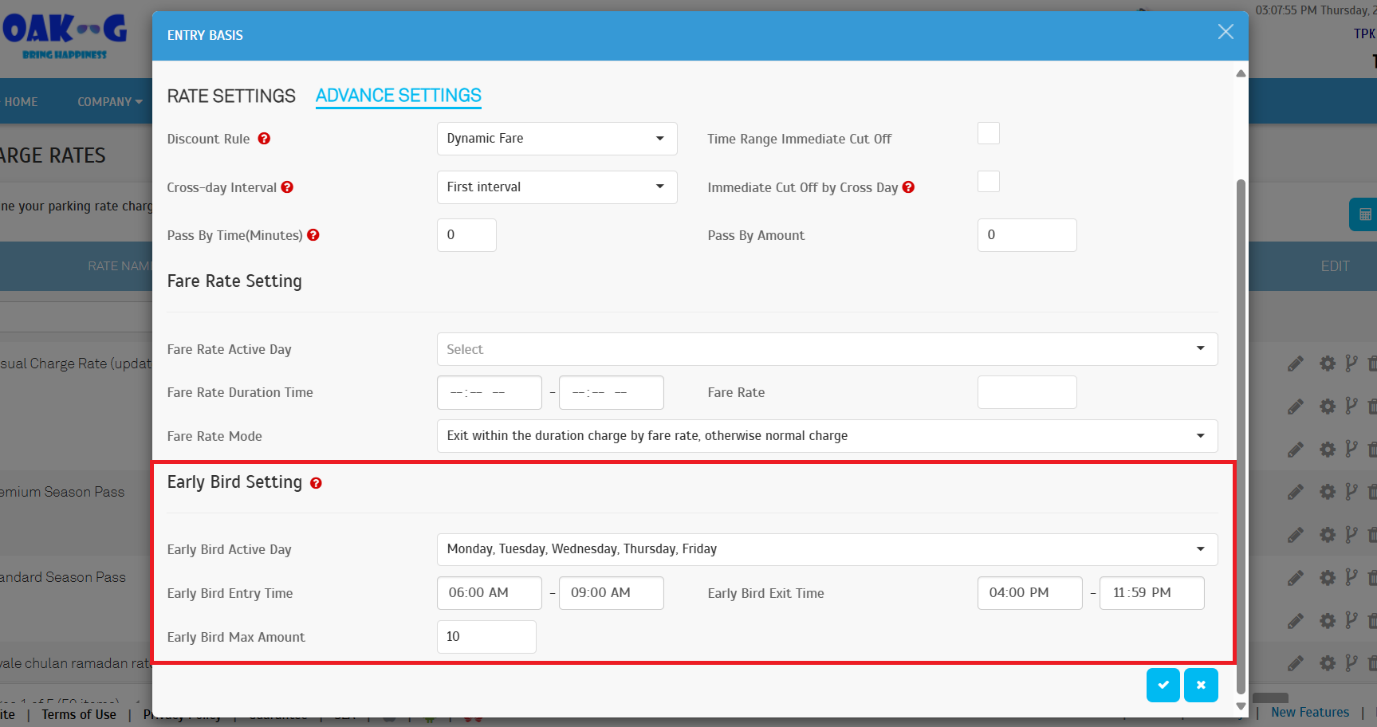
Encourage early arrivals with time-sensitive Early Bird rates.
Operator View: Parking Rule > Charge Rates > Entry Basis > Advanced Settings
Example:
Early Bird rate applies if user:
• Enters between 6:00 AM–9:00 AM (weekdays)
• Exits between 4:00 PM–11:59 PM (weekdays)
7.1. Operator View: Parking Rule > Charge Rates > Entry Basis
a. A new section titled "Early Bird Setting" has been added under Advanced Settings. This setting is only applicable when the charge rate mode is set to Time Range.
b. The sample charge rate is as follows:
i. The user is entitled to the Early Bird rate if they:
1. Enter between 6:00 AM and 9:00 AM on weekdays, and
2. Exit between 4:00 PM and 11:59 PM on weekdays.
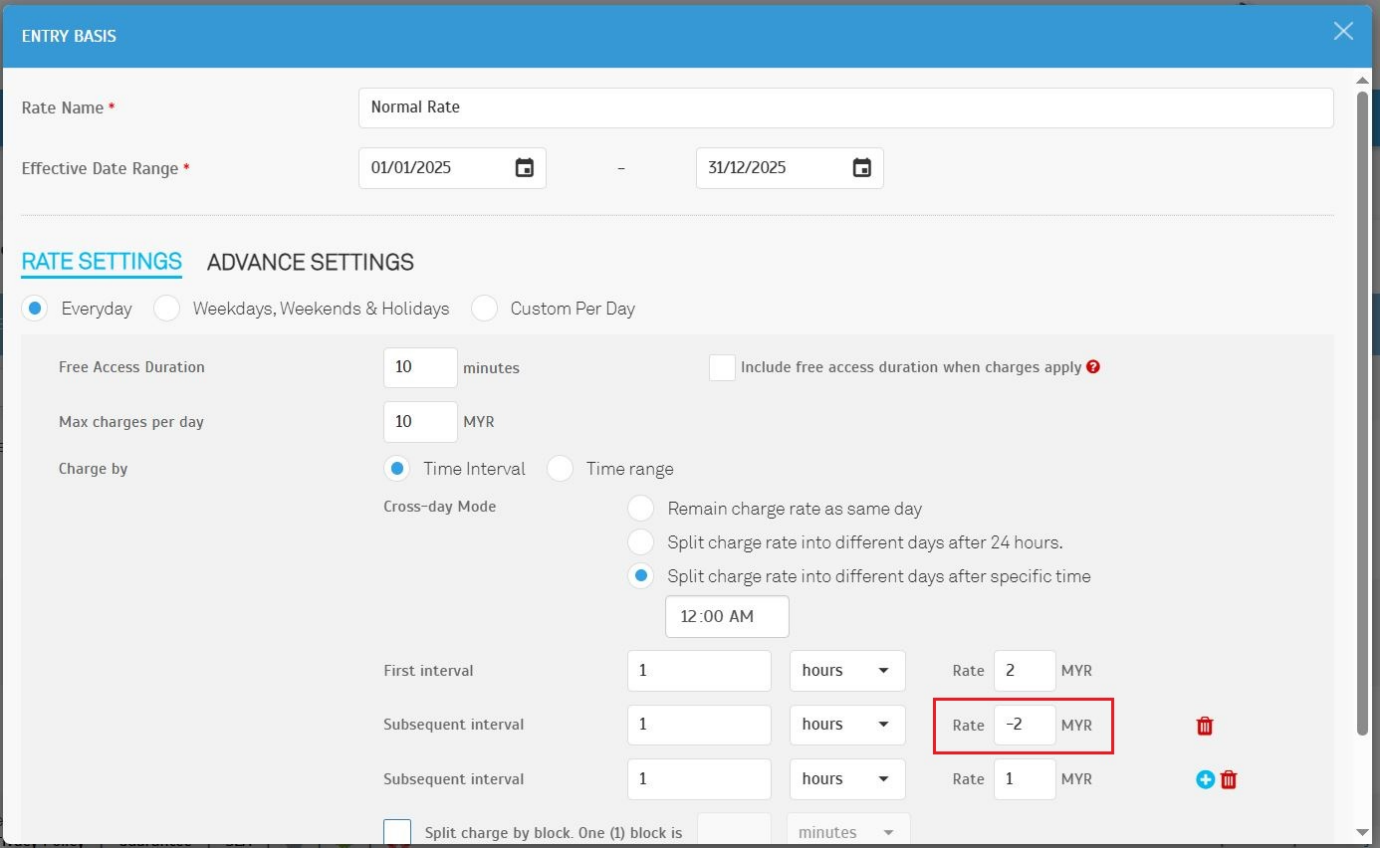
8. Support for Negative Value in Entry Basis Configuration
Operators can now set zero or negative charges for specific intervals within Entry Basis settings. Ideal for advanced fee structures.
9. E-Invoice Module Enhancements
Several quality-of-life improvements for e-Invoice users:
• Auto-submit Cancelled/Invalid e-Invoices with consolidated batches on the 7th of every month
• Optional SST field in company profile
• Improved sorting/filtering in E-Invoice > Record
a. If the operator wants to identify which consolidated document a specific invoice was submitted under, the following steps can be taken:
i. Navigate to E-Invoice > Record and search using the "Invoice ID / Number" column.
ii. Click the corresponding button under the "Action" column to open the Details Panel.
iii. In the Details Panel, click on the "Invoice Count" value to view the List of Invoices included in the consolidated document.
iv. Locate the specific invoice from the list to confirm its inclusion.
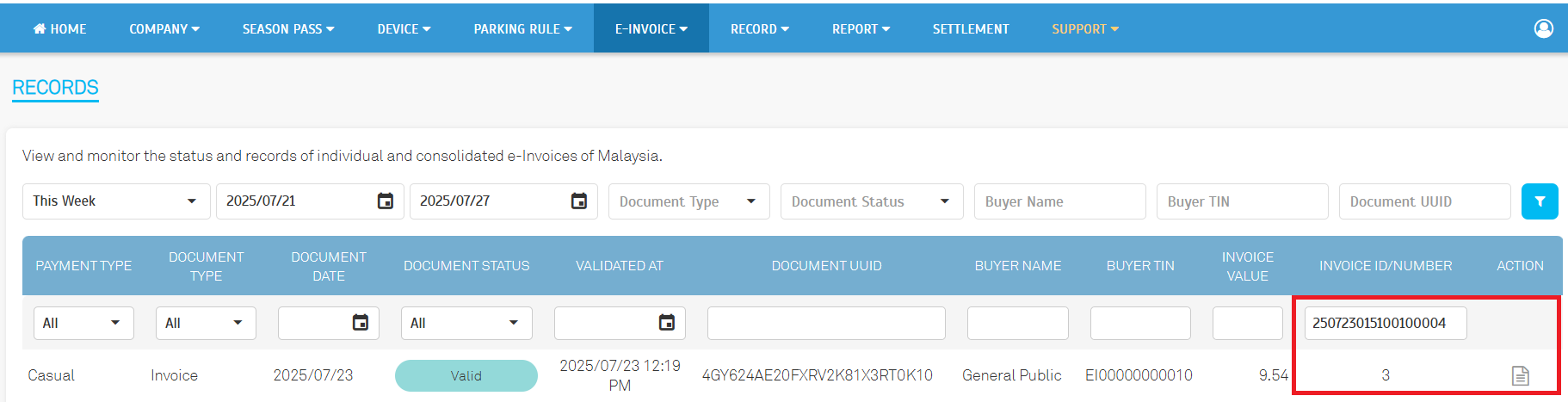
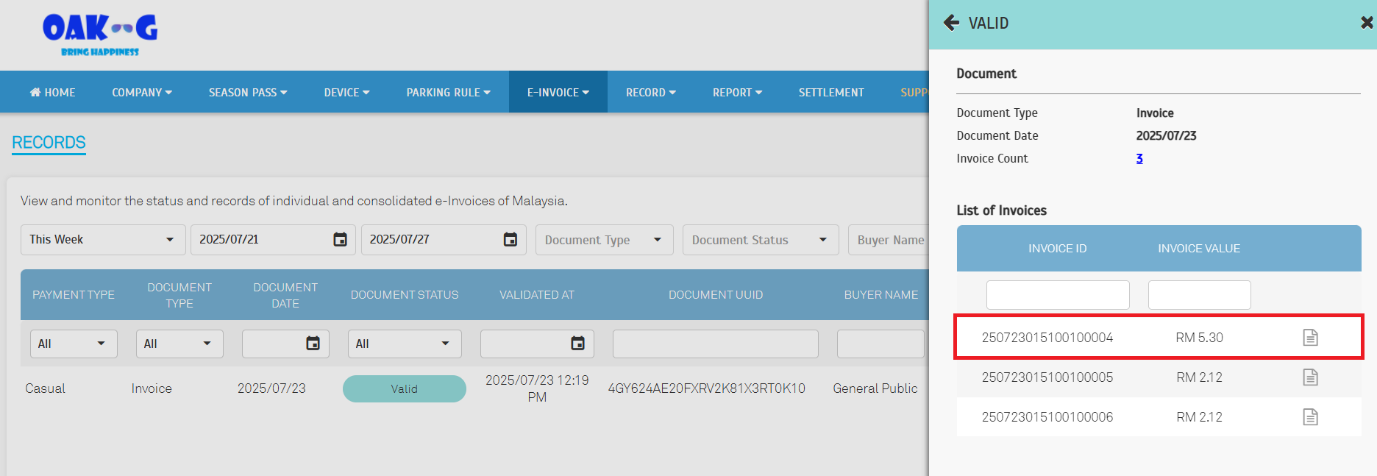
• Easily trace an invoice to its consolidated batch via the Details Panel
• Buyer TIN now displayed on e-Invoice receipts for personal invoice requests
The system now includes the Buyer's Tax Identification Number (TIN) for personal e-Invoice request on the e-Invoice receipt.
10. Services & Integration Updates
a. Daily Settlement Service: Auto verified for Touch 'n Go transactions.
b. Daily Settlement Comparison Service for &Pay Variance.
c. i-Account Integration: Return e-Invoice information for transactions.
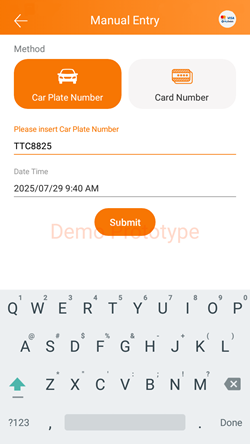
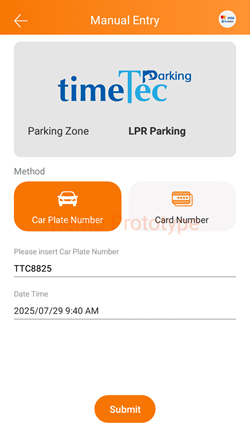
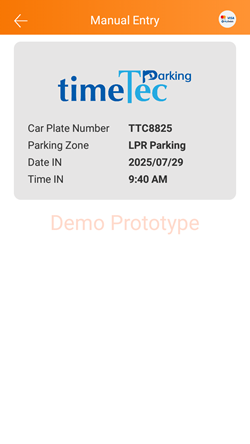
11. TimeTec Parking Officer App - Manual Entry
The process has been redesigned to better support continuous data entry.
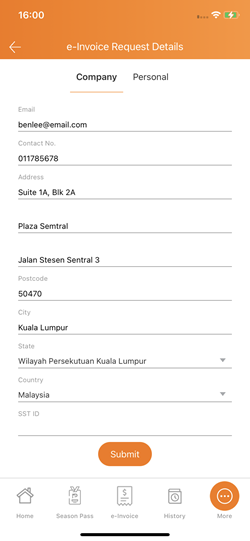
12. TimeTec Parking Mobile app - e-Invoice
The SST ID is now optional in the Company Profile.
13. TimeTec Parking Mobile app - General
Selection interface redesigned.